USR-TCP232-302 Setup
Connecting the USR-TCP232-302 RS-232 to Ethernet converter for use with CAV 6 Control
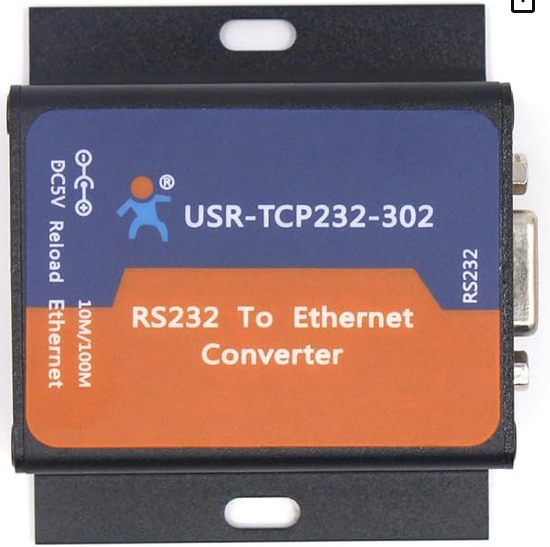
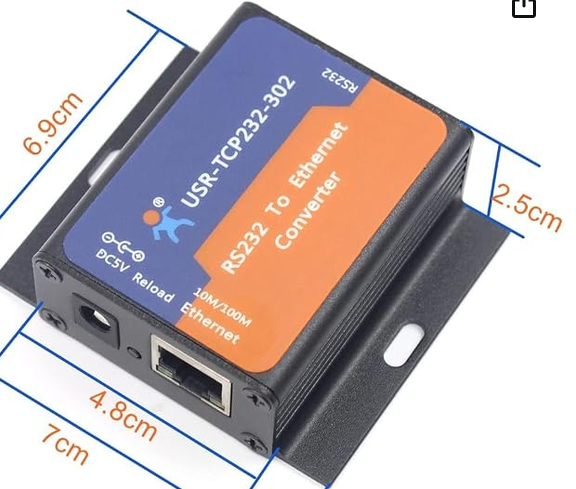
The device
The USR-TCP232-302 is a compact RS-232 to TCP/IP converter that bridges your Russound CAV6.6 controller's serial port to your home network. It's an affordable and reliable choice for use with CAV 6 Control.
Required: Null Modem Cable
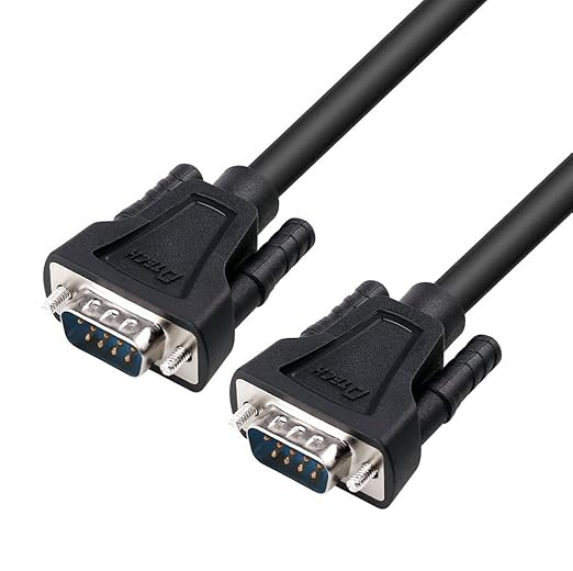
You'll need a null modem cable (DB9 male-to-male, crossover wiring) to connect the USR-TCP232-302 to the Russound CAV6.6 controller's RS-232 port. A standard straight-through serial cable will not work.
Purchase a Null Modem Cable
A short 1.5 ft cable works well for connecting directly to the controller:
Buy on Amazon →Settings
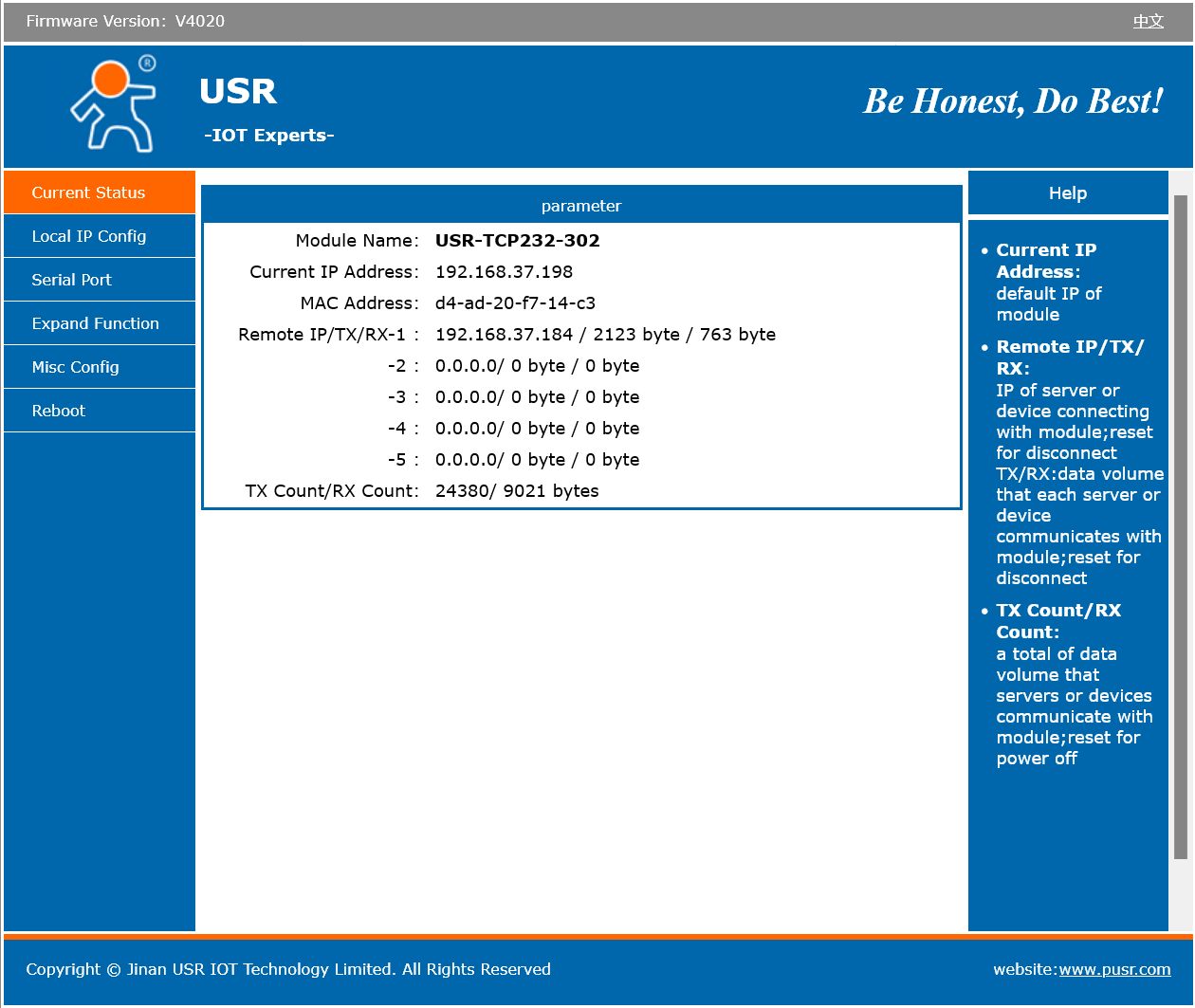
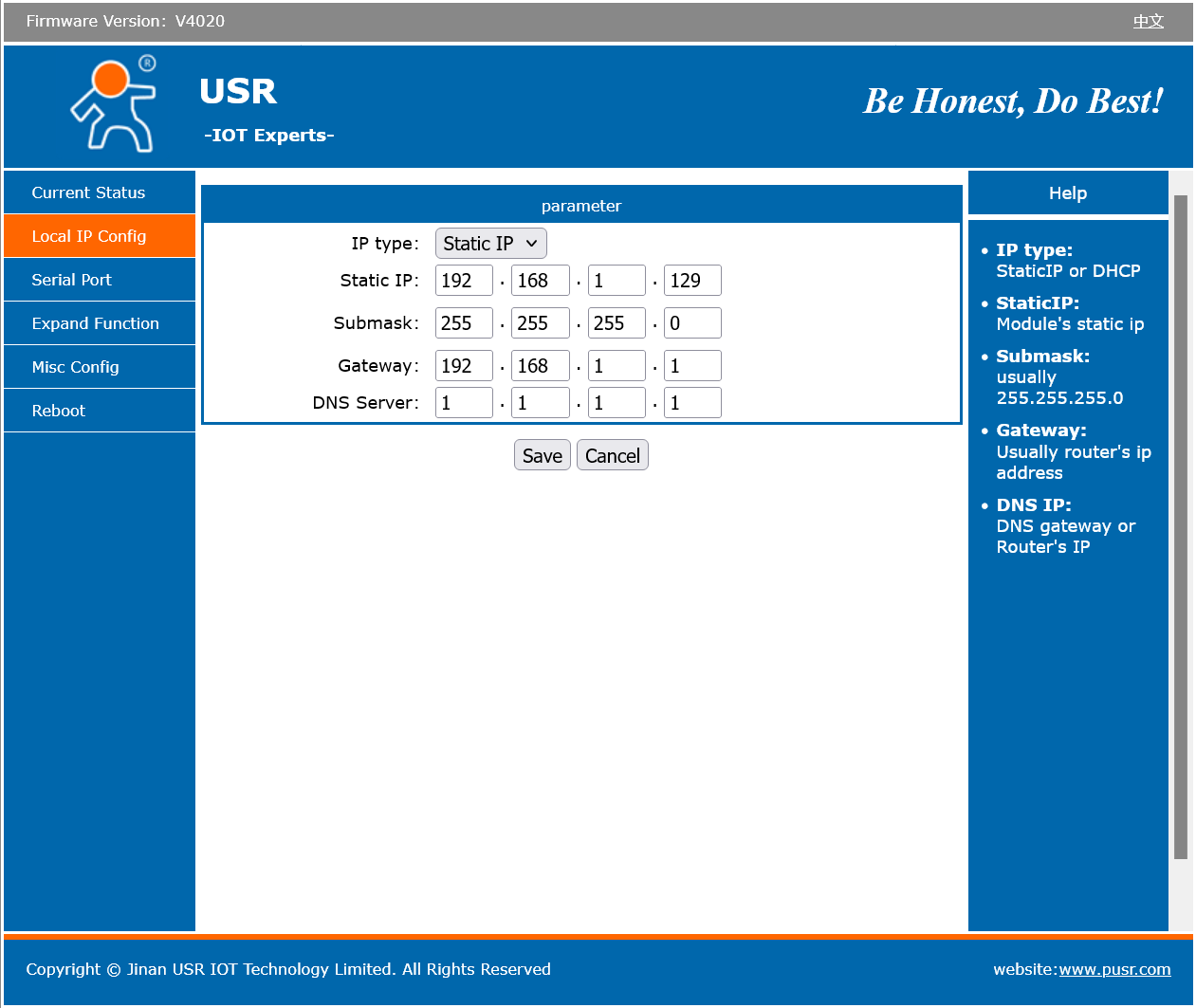
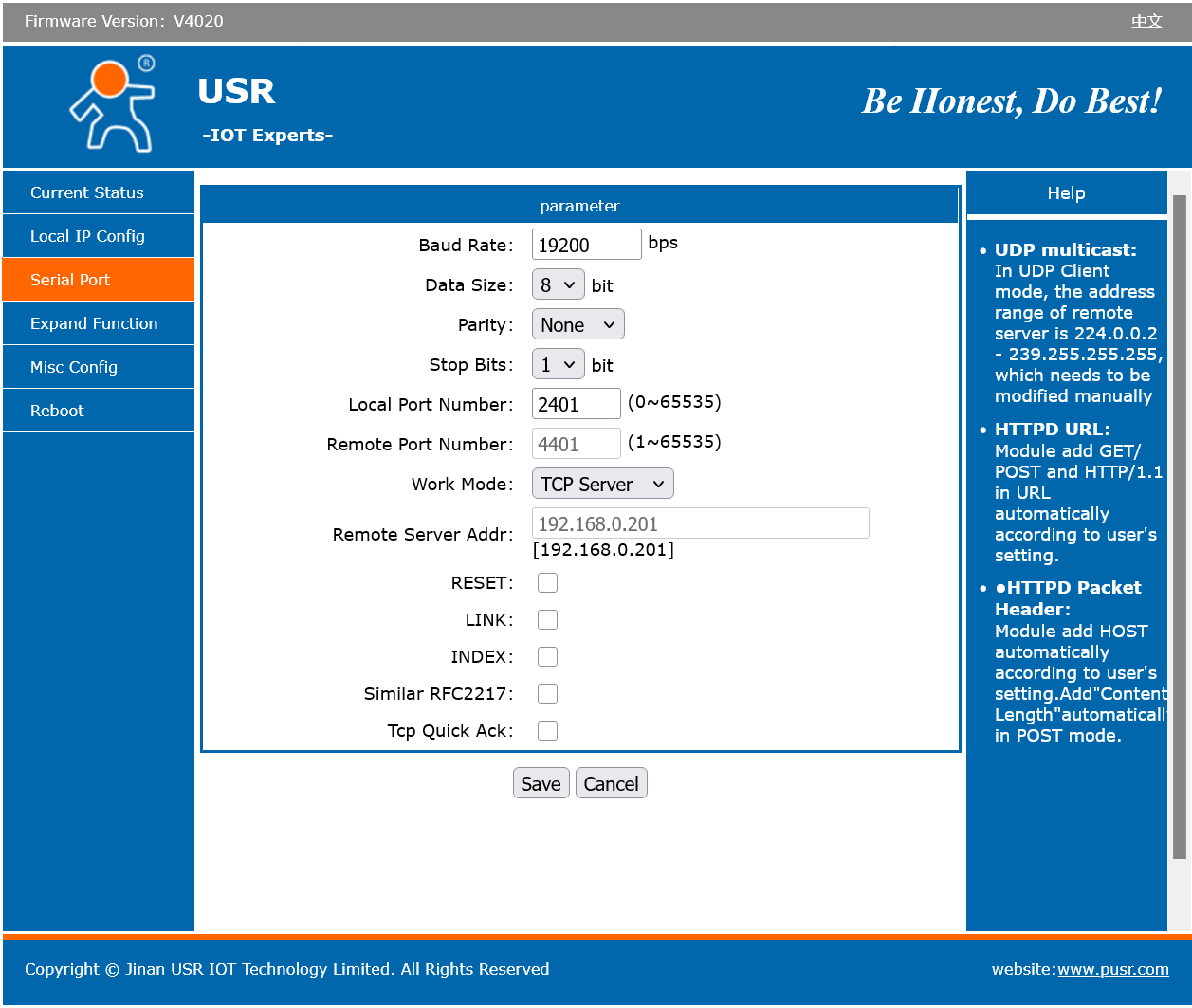
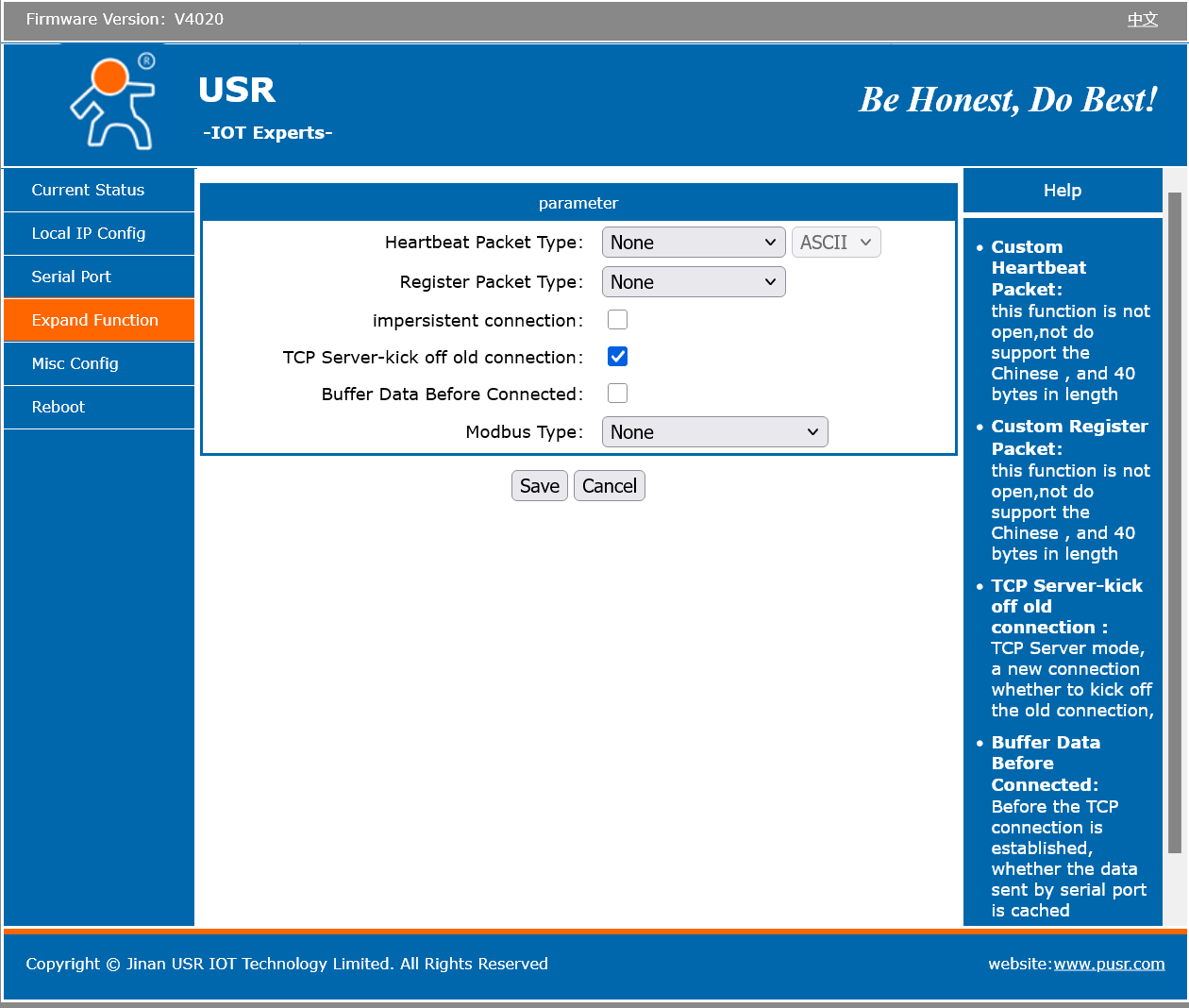
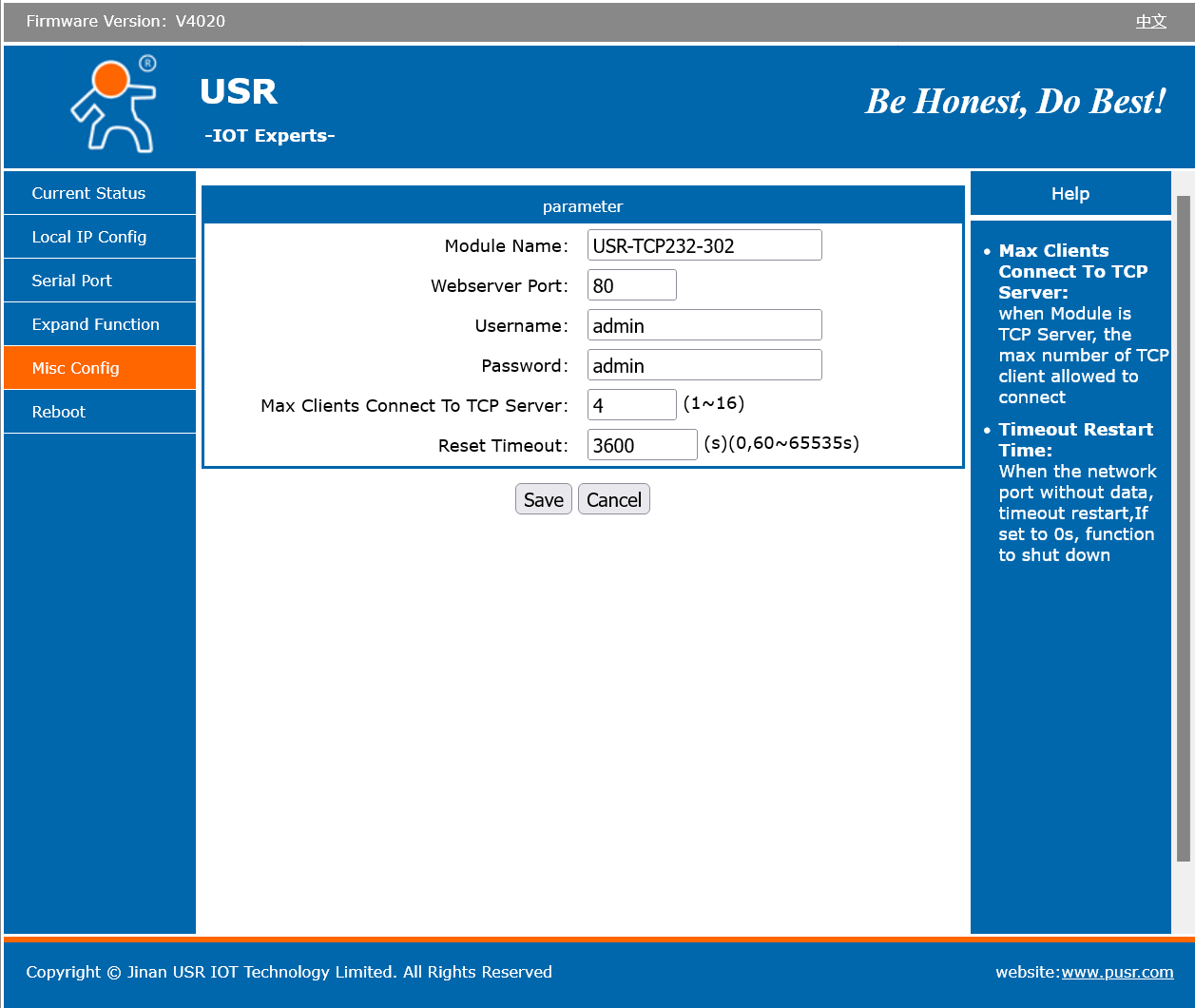
Access the USR-TCP232-302's web interface by entering its IP address into a browser on the same network. Use the following settings to configure it for CAV 6 Control:
Connecting to CAV 6 Control
- Connect the USR-TCP232-302 to your network via Ethernet.
- Connect the null modem cable between the USR-TCP232-302's DB9 port and the first Russound CAV6.6 controller's RS-232 port.
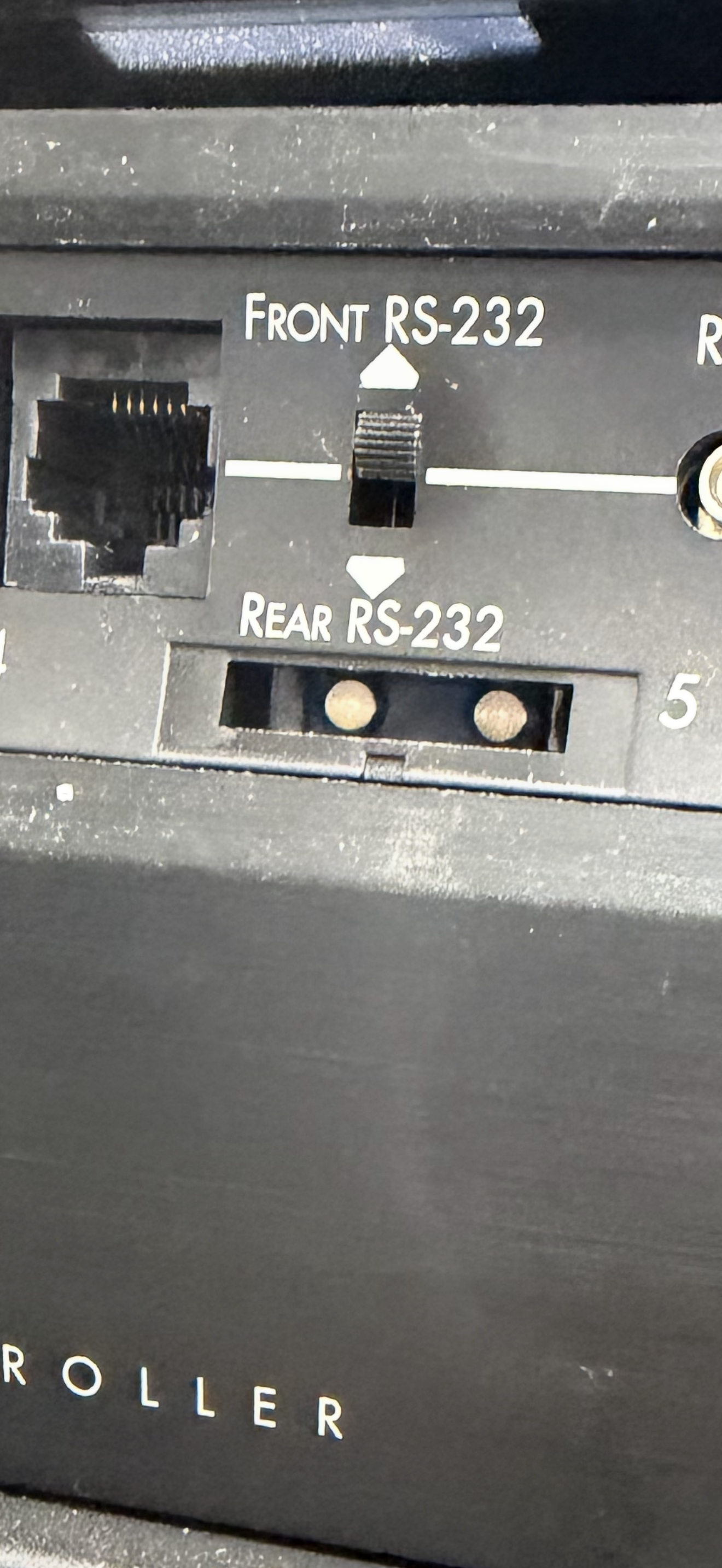
The CAV6.6 unit has both a front and a rear RS-232 port. Ensure that the cable is plugged into the correct port, which is determined by the switch on the CAV6.6 unit.
- In the CAV 6 Control iPhone App, open Settings → Network & Controllers and enter the device's static IP address and TCP port.
- Make sure your iPhone and the USR-TCP232-302 are on the same Wi-Fi network.